 Software Development
 Security Services
 Cloud Services
 AI Services
 Other Services















 TechMagic Academy


Copilot
The copilot is one of the clearest expressions of AI as a supportive layer – not in your face, just quietly available when you need it. It usually appears as a small button labeled “Copilot”. When clicked, it opens a side panel. The side panel format keeps the experience contained – it doesn’t interrupt or overwrite what you’re doing. It complements your task, running in parallel.
Inside that panel, users can ask questions, summarize content, generate text, troubleshoot problems, or explore ideas – without ever leaving the page. It’s especially powerful for moments when you need a boost but don’t want to stop what you’re working on. It fits naturally into existing workflows while offering superpowers on demand.
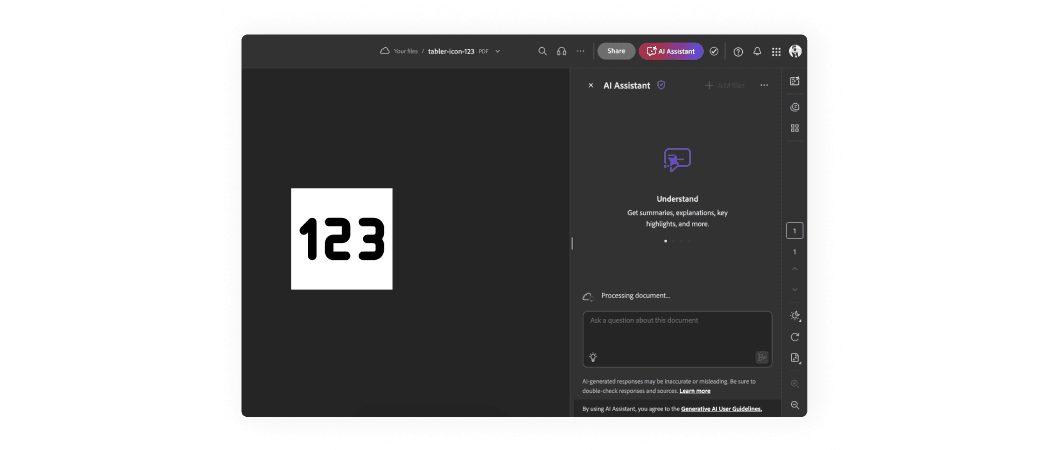
Adobe Acrobat provides users with an “AI Assistant” button in the header. When clicked, a side panel with the AI chat appears.
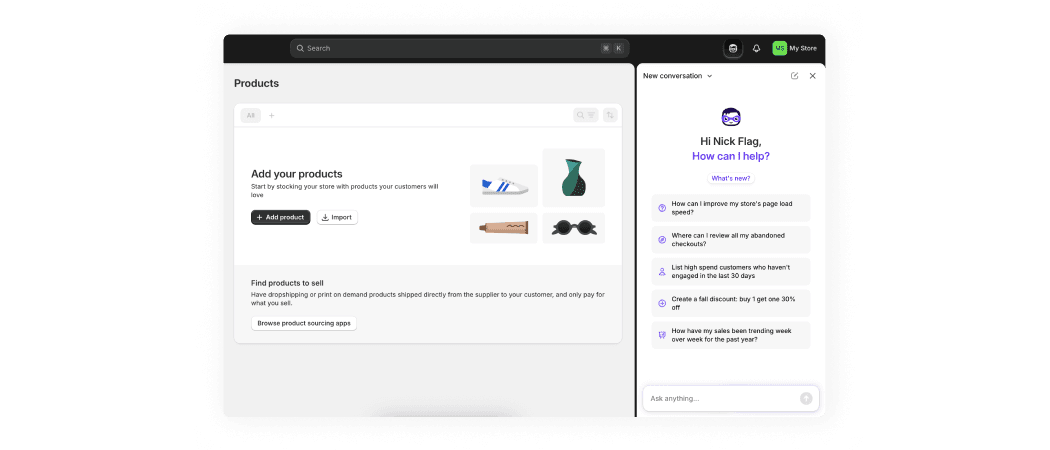
Shopify provides users with an AI assistant icon-button in the header. When clicked, a side panel with the AI chat appears.
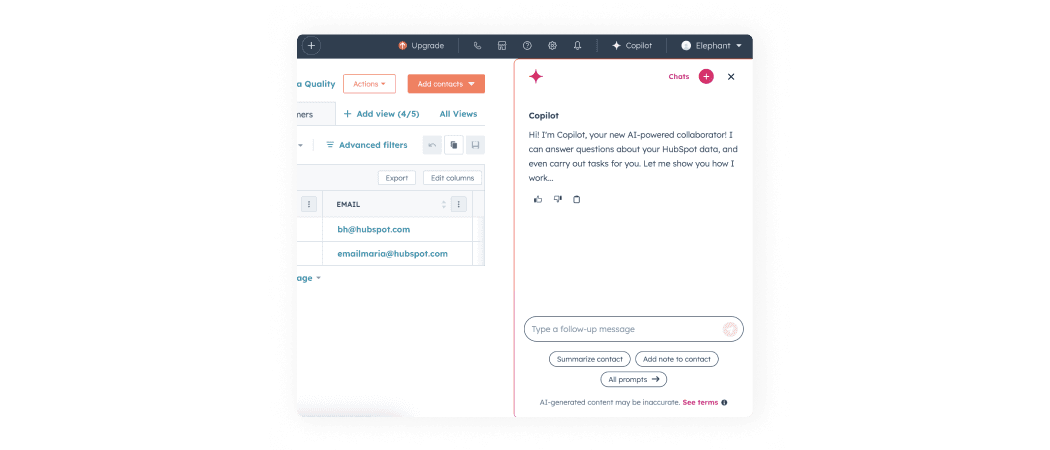
HubSpot provides users with an “Copilot” button in the header. When clicked, a side panel with the AI chat appears.
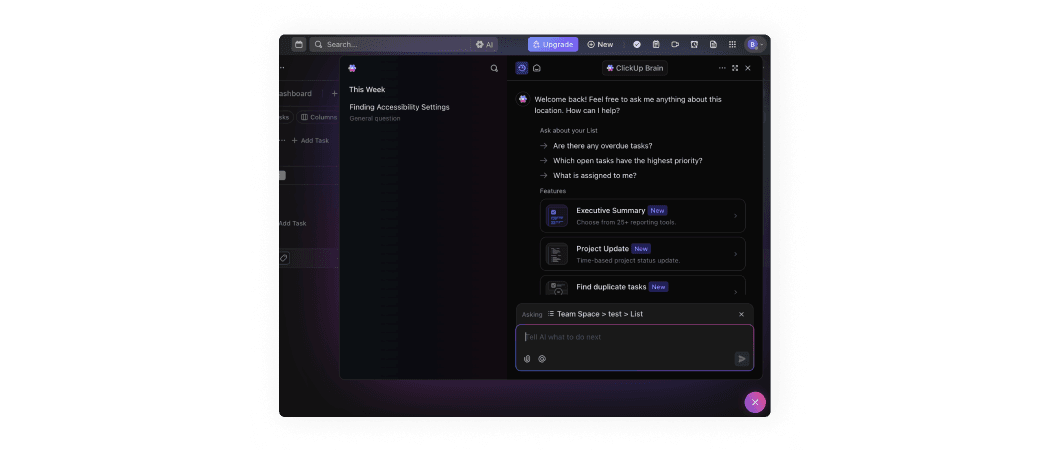
ClickUp provides users with an AI assistant FAB in the right bottom corner. When clicked, a side panel with the AI chat appears.
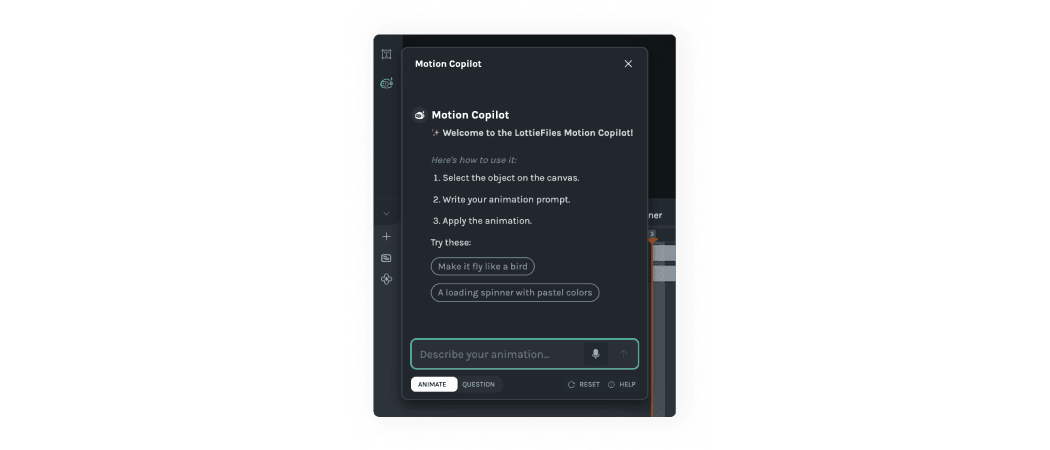
LottieFiles provides users with an AI assistant icon in the left action-panel. When clicked, a draggable non-modal window with the Motion Copilot AI appears.
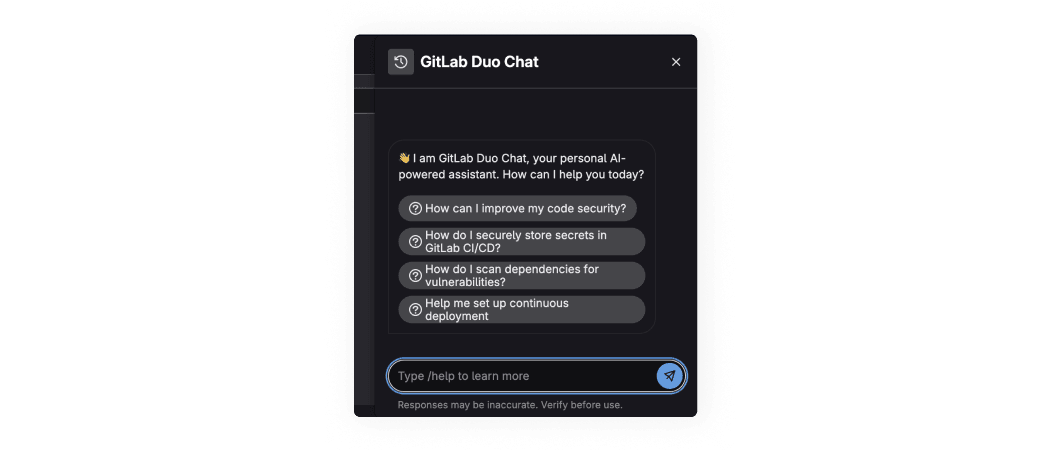
GitLab provides users with an “Copilot” button in the header. When clicked, a side panel with the AI chat appears.
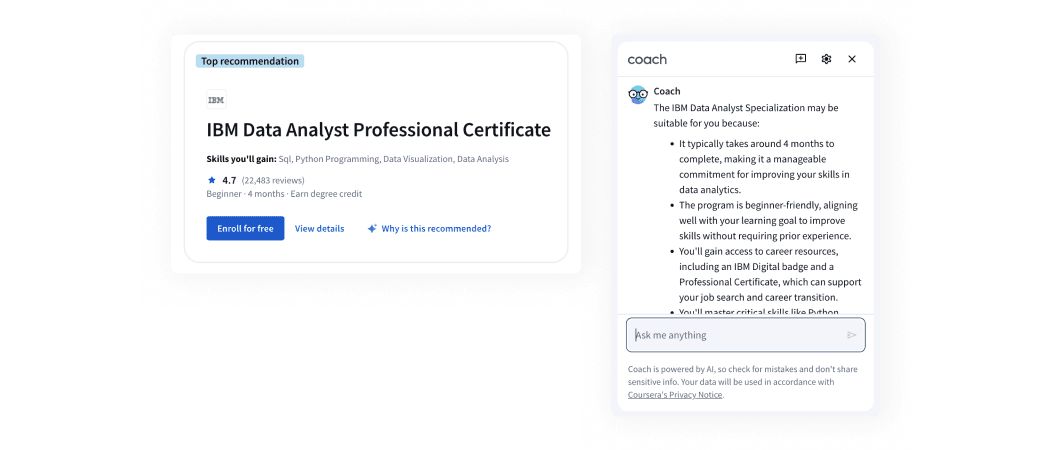
Coursera provides users with an AI assistant buttons. When clicked, a side panel with the AI chat (Coach) appears.
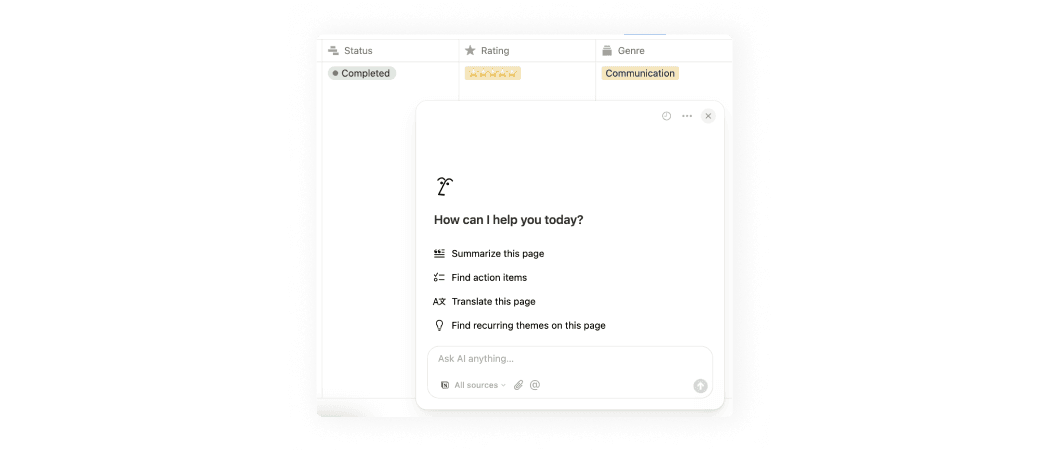
Notion provides users with an AI assistant FAB in the right bottom corner. When clicked, a side panel with the AI chat appears.
AI patterns checklist
PDF, 220 MB